
Instant contact sharing has replaced the fumbled business card exchange as the default for professionals who take first impressions seriously. Using technologies such as Apple's NameDrop, AirDrop, NFC, and QR codes, you can transfer your full contact profile to another person's phone in seconds, with no typing, no app downloads, and no risk of handing over a card that's already out of date. The result is faster follow-up, cleaner data, and a professional image that paper simply cannot match.
Table of Contents
- Why instant contact sharing matters for professional networking
- How to use NameDrop and AirDrop on iPhone for instant sharing
- How to share contacts via NFC and QR codes on Android and iOS
- Privacy, etiquette, and best practices for contact sharing
- How digital contact cards are changing professional networking
- Key takeaways
Why instant contact sharing matters for professional networking
The role of instant contact sharing goes well beyond convenience. It changes the entire dynamic of a networking interaction, shifting the focus from logistics to conversation.
- Speed: A contact transfers in seconds rather than the minutes it takes to type details manually or locate a spare card.
- Accuracy: Digital profiles eliminate transcription errors, a persistent problem with handwritten or verbally exchanged details.
- Real-time updates: Your contacts always see your current job title, number, and links, even if you changed them after the initial exchange.
- Analytics: Platforms that support digital contact cards can track profile views and link clicks, turning a contact card into a measurable networking asset.
- Sustainability: Going paperless reduces waste and signals environmental awareness, which matters to a growing number of UK professionals and organisations.
- CRM integration: Many digital contact tools connect directly with platforms such as Salesforce and HubSpot, so a new connection flows straight into your pipeline without manual entry.
- Professionalism: Tapping phones or scanning a QR code reads as organised and forward-thinking, particularly at conferences, trade shows, and client meetings.
The importance of contact sharing in a professional context has grown sharply as hybrid working and in-person events have returned, making every face-to-face moment count more than it did before.
How to use NameDrop and AirDrop on iPhone for instant sharing
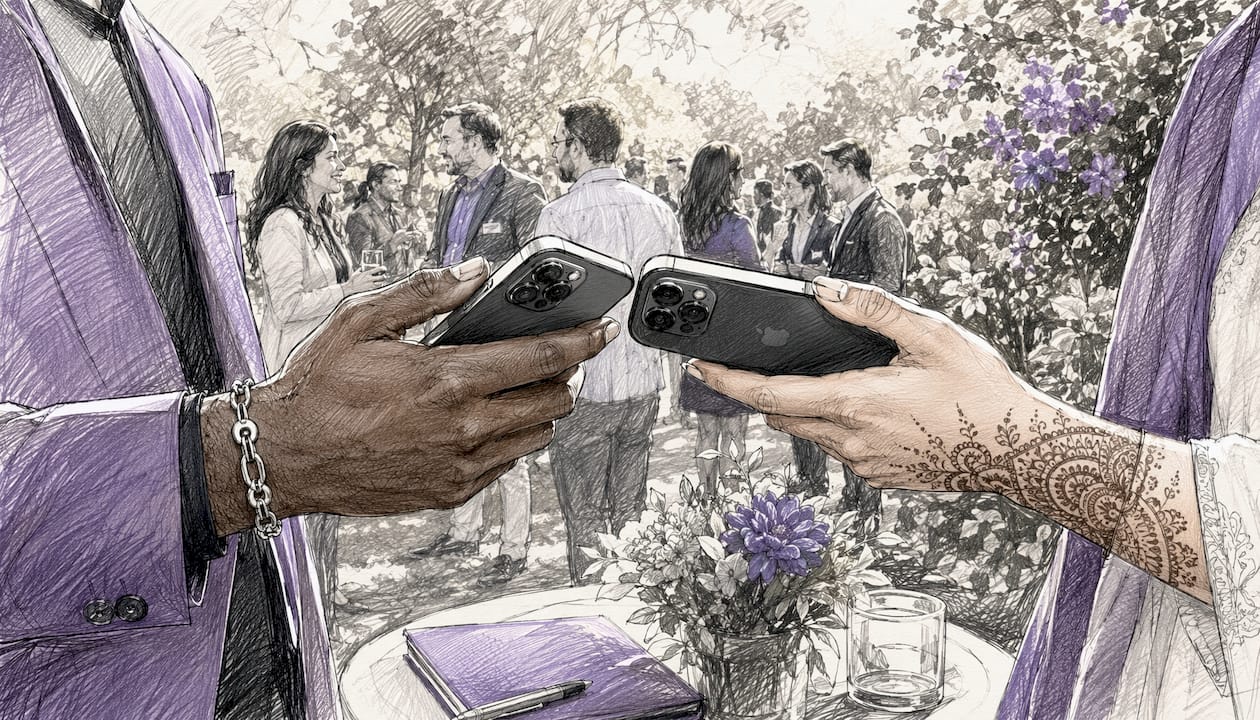
Apple's NameDrop is the most frictionless native option available for iPhone users. It works from iOS 17.1 onward, and is compatible with Apple Watch Series 7, Apple Watch SE (2nd generation), and Apple Watch Ultra models running watchOS 10.1 or later.
Setting up NameDrop
Before your first use, confirm that the Bringing Devices Together setting is enabled. Go to Settings > General > AirDrop and toggle it on. Both devices need this active, and both must be unlocked before the feature triggers.
Sharing a contact with NameDrop: step by step
- Unlock your iPhone and hold its top edge a few centimetres from the top edge of the other person's iPhone or Apple Watch.
- Wait for the glowing animation and haptic feedback. Both screens will display a full-screen Contact Poster.
- Below your name, you will see a summary of what will be shared. By default, NameDrop shares your name, Contact Poster, and primary phone number or email address.
- Tap the small > button next to your phone number or email to add or remove fields such as your postal address, social media handles, or job title.
- Choose Share to exchange contact cards mutually, or Receive Only if you want the other person's details without sharing your own.
- The devices can be pulled apart once the options appear. You do not need to hold them together through the entire process.
Key security points
- NameDrop requires the device to be unlocked and the user to confirm sharing explicitly. Nothing transfers without active approval.
- NameDrop cannot update an existing contact, only create a new one.
- To disable NameDrop entirely, turn off Bringing Devices Together in AirDrop settings. AirDrop itself can remain active under its own separate settings.
Using AirDrop as a fallback
AirDrop predates NameDrop and remains useful when the other person has an older iPhone or has not updated to iOS 17. Unlike NameDrop, AirDrop lets you share any contact in your address book, not just your own card.
- Open the Contacts app and select the contact you want to share.
- Tap Share Contact and choose AirDrop from the share sheet.
- Select the recipient's device from the list of nearby AirDrop users.
- The recipient accepts the vCard, which opens directly in their Contacts app or imports into third-party apps such as Microsoft Outlook.
Pro Tip: Before a networking event, set your AirDrop to "Everyone for 10 Minutes" so colleagues can find you quickly without needing to adjust settings mid-conversation.
How to share contacts via NFC and QR codes on Android and iOS
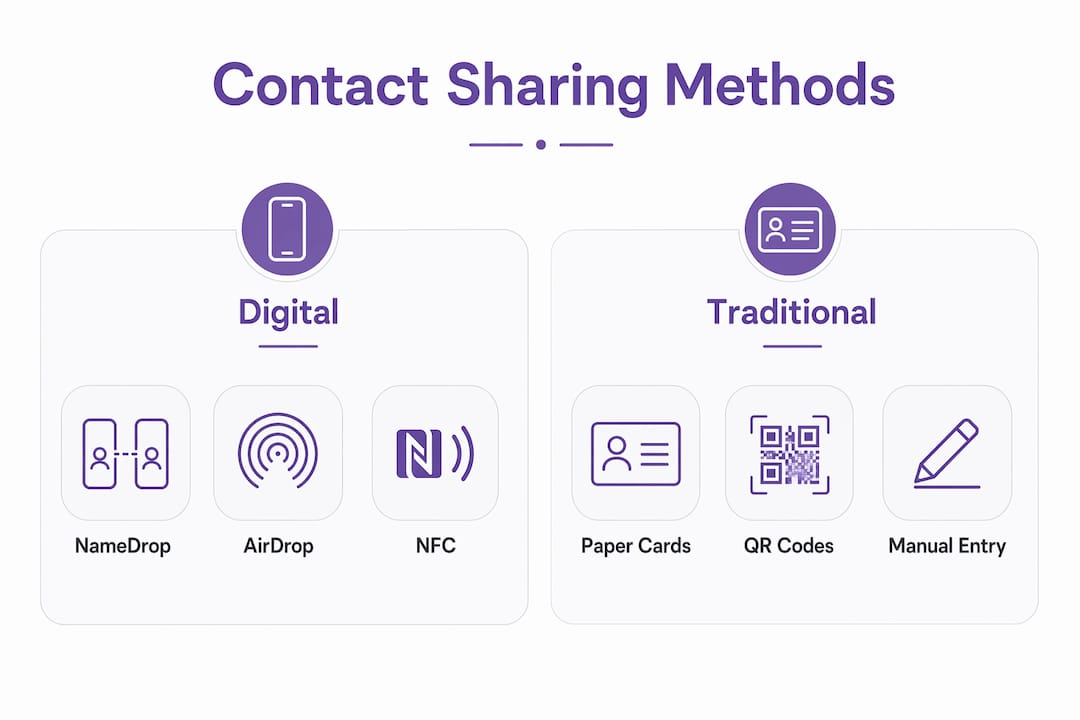
NFC (Near Field Communication) and QR codes are the two most cross-platform methods for instant contact exchange, working across Android and iOS without relying on a shared operating system.
How NFC contact sharing works
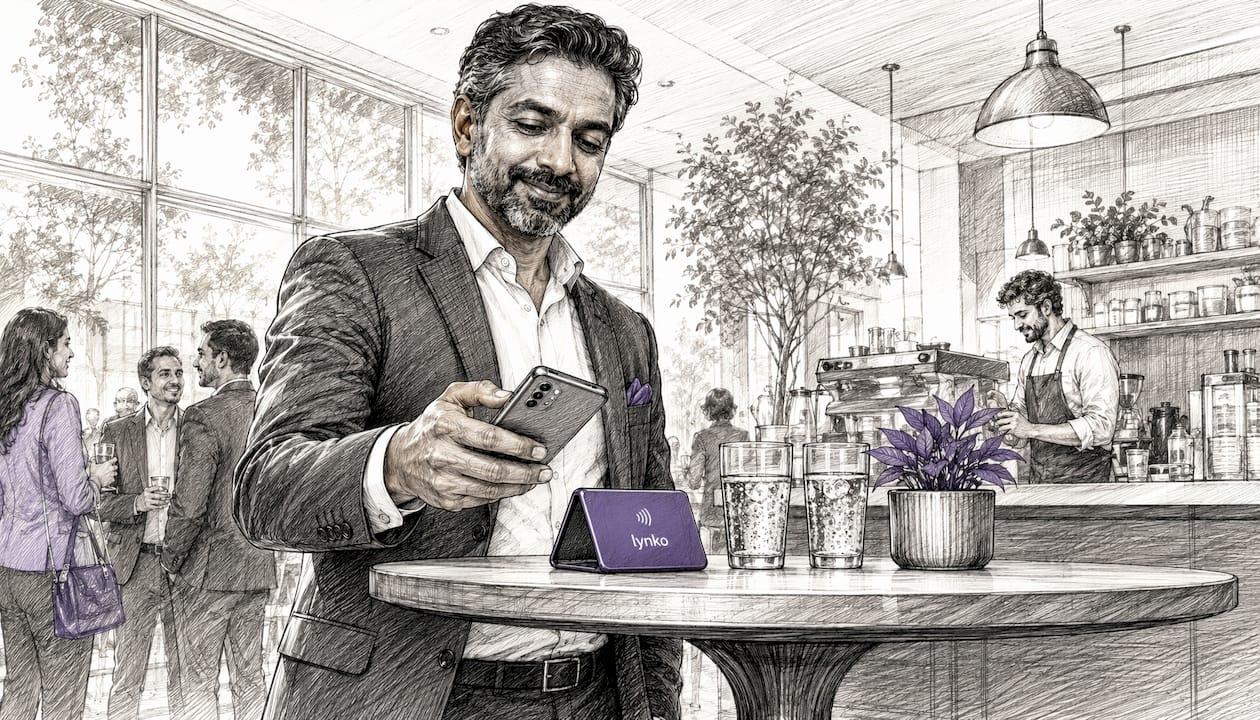
NFC uses short-range radio frequency to trigger a data transfer when two NFC-enabled devices touch or come within a few centimetres of each other. On Android, Google is developing Tap to Share, a feature that uses an NFC handshake and then switches to Wi-Fi or Bluetooth for larger transfers, with design aligned to Android 16. NFC-enabled physical cards, such as those from Lynko, work differently: the card contains a chip that any NFC-capable smartphone can read with no app required.
Sharing via NFC: step by step
- Confirm NFC is enabled on your Android device under Settings > Connected Devices > Connection Preferences > NFC.
- On iPhone, NFC reading is active by default from iOS 14 onward; no setting change is needed.
- Hold the NFC card or device to the back of the recipient's phone, near the top where the antenna typically sits.
- A notification or browser link appears on the recipient's screen. They tap it to view your digital contact profile, which can include your name, title, phone, email, LinkedIn, portfolio links, and more.
- The recipient saves your details directly to their contacts or follows your links, with no app download required.
Sharing via QR code: step by step
- Generate a QR code linked to your digital contact profile through your chosen platform (Google Contacts, a digital card provider, or a dedicated networking app).
- Display the QR code on your phone screen or print it on a physical card or lanyard badge.
- The recipient opens their phone camera (iOS 11 and above, or most Android camera apps) and points it at the code.
- A link appears at the top of the screen. Tapping it opens your profile instantly.
- On Android, if the camera app does not recognise QR codes natively, Google Lens handles the scan reliably.
Android vs iOS: key differences
| Feature | Android | iOS |
|---|---|---|
| Native NFC sharing | Yes (varies by manufacturer) | NFC reading from iOS 14; no native NFC contact push |
| Native QR scanning | Via camera or Google Lens | Via native camera app (iOS 11+) |
| NameDrop equivalent | Tap to Share (in development) | NameDrop (iOS 17.1+) |
| App required for NFC card reading | No | No |
Pro Tip: Keep your QR code saved as a widget on your phone's home screen or lock screen. At a busy event, you can pull it up in under two seconds without unlocking and navigating to an app.
Privacy, etiquette, and best practices for contact sharing
Sharing contact details digitally is fast, but speed does not mean careless. Getting the etiquette right protects your reputation as much as it protects your data.
Privacy considerations
- Share only what is necessary. NameDrop defaults to your primary phone number or email for a reason. Adding your home address to a professional exchange is rarely appropriate.
- Review your Contact Poster. On iPhone, the Contact Poster is what others see during a NameDrop session. Go to Contacts > My Card to check what fields are visible and adjust them before any event.
- Control app permissions. Both iOS and Android allow you to restrict which apps can access your contacts. Review these under Settings > Privacy > Contacts (iOS) or Settings > Apps > Permissions (Android).
- GDPR applies. In the UK, storing someone's contact details in a CRM or marketing tool without a lawful basis is a breach of UK GDPR. If you plan to add new contacts to a mailing list, tell them at the point of exchange and obtain consent.
Etiquette guidelines
- Ask before you tap. Even though NameDrop requires the other person's confirmation, initiating without a verbal heads-up can feel abrupt. A quick "shall we swap details?" takes three seconds and sets the right tone.
- Respect a refusal. If someone declines to share digitally or prefers a different method, accept it without comment.
- Do not share third-party contacts without permission. Forwarding a colleague's contact card to someone else without asking them first is a breach of trust, and potentially of UK GDPR.
- Follow up promptly. The advantage of digital sharing is that the contact is already clean and saved. Use that advantage by sending a brief follow-up message within 24 hours while the conversation is still fresh.
Security tips
- Disable NameDrop or NFC sharing on your device when you are in crowded public spaces if you are concerned about accidental triggers, though both technologies require active confirmation before any data transfers.
- Use a dedicated professional email address in your shared contact profile rather than a personal one, keeping your private life separate from your networking activity.
- Regularly audit which contacts have your details and update your digital profile when your role or number changes, so old information does not circulate.
How digital contact cards are changing professional networking
Digital contact cards have moved well past being a novelty. For sales professionals, recruiters, and executives who attend multiple events a year, they have become a practical tool with measurable returns.
Dynamic updates versus static paper
A paper card is fixed the moment it is printed. Change your job title, phone number, or company, and every card you have already handed out becomes wrong. Digital contact cards update in real time, so every person you have ever shared your profile with automatically sees your current details. For professionals who rebrand, change roles, or update their contact information regularly, this alone justifies the switch.
The contactless business card benefits extend further when you consider the cost of reprinting paper cards every time something changes, which for many professionals happens at least once a year.
Analytics and engagement tracking
Digital contact-sharing platforms can show you how often your profile is viewed, which links are clicked, and when activity spikes after a specific event. That level of insight turns a contact card into something closer to a mini landing page. For sales professionals, knowing that a prospect clicked your portfolio link three times after a meeting is genuinely useful intelligence. Pairing contact sharing analytics with tools like tracked async video follow-ups gives you a fuller picture of post-meeting engagement without requiring a phone call.
CRM integration
Most professional digital card platforms connect with CRM tools such as Salesforce, HubSpot, and Pipedrive. A new contact scanned at a trade show can appear in your CRM within minutes, tagged with the event and date, ready for a follow-up sequence. That removes the manual data entry step that causes so many paper-card contacts to go cold.
Sustainability and brand perception
Going paperless removes the environmental cost of card printing entirely. For UK professionals working with clients who have sustainability commitments, arriving at a meeting with an NFC card rather than a stack of paper cards sends a clear signal about your values. It is a small detail, but small details accumulate into a professional reputation.
Who benefits most
- Sales professionals who meet multiple prospects daily and need clean, CRM-ready contact data.
- Recruiters attending job fairs who exchange details with dozens of candidates in a single afternoon.
- Freelancers and creatives who can link directly to a portfolio, showreel, or case study from their contact profile.
- Executives who want their contact details to reflect the same quality as the rest of their personal brand.
Lynko's NFC business cards are built around exactly this use case: a single tap shares a fully customisable digital profile to any smartphone, with no app required on the recipient's end, real-time analytics, and GDPR-compliant data handling. The card integrates with your existing brand identity through custom themes and modules, so the profile a new contact sees reflects your professional image rather than a generic template.
If you are ready to replace paper with something that works harder, Lynko's digital business card gives you a profile you can update instantly, share in any environment, and track after every event.
Key takeaways
Instant contact sharing via NFC, QR codes, and native OS features like NameDrop gives professionals a faster, more accurate, and more trackable alternative to paper business cards.
| Point | Details |
|---|---|
| NameDrop requires iOS 17.1 | Both iPhones must run iOS 17.1 or later; sharing requires explicit user confirmation on each device. |
| NFC works across platforms | NFC-enabled cards and devices share contact profiles to any NFC-capable smartphone without an app download. |
| Digital cards update in real time | Contacts always see your current details, even if you changed them after the initial exchange. |
| Privacy and consent matter | Share only necessary fields, obtain consent before adding contacts to marketing tools, and follow UK GDPR. |
| Analytics turn cards into assets | Profile views and link-click data help sales and recruitment professionals measure post-event engagement. |